Show area for agent
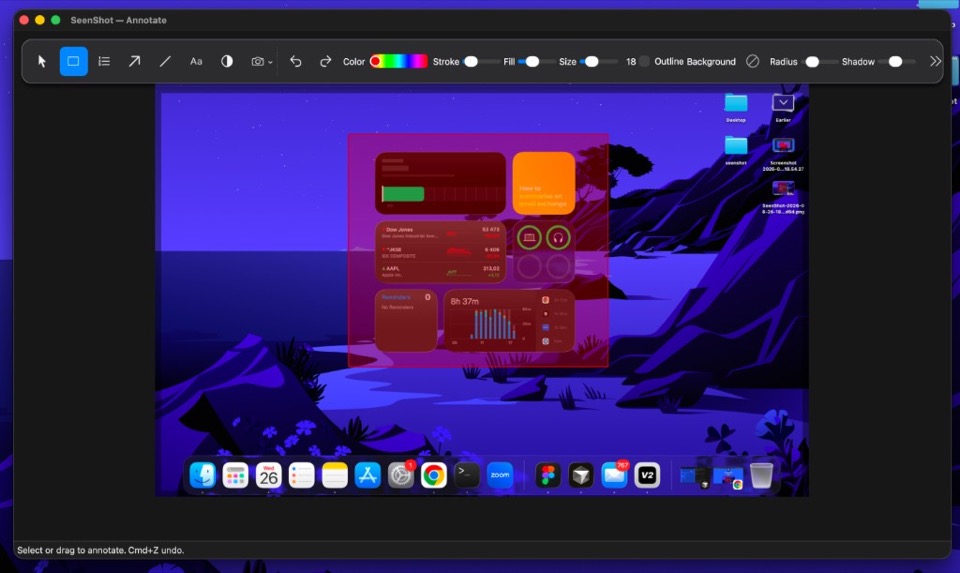
Highlight area for the agent what it should fix.
 SeenShot.appFast, Secure annotation App for Ai Agents
Hit cmd+shift+2, annotate, insert in to your agent.
Free · macOS 14 or later
Highlight area for the agent what it should fix.
Keep protect any sensitive data from AI Agents. Phones, faces, passwords, API keys. No need API keys, working offline
Supports all AI Agents
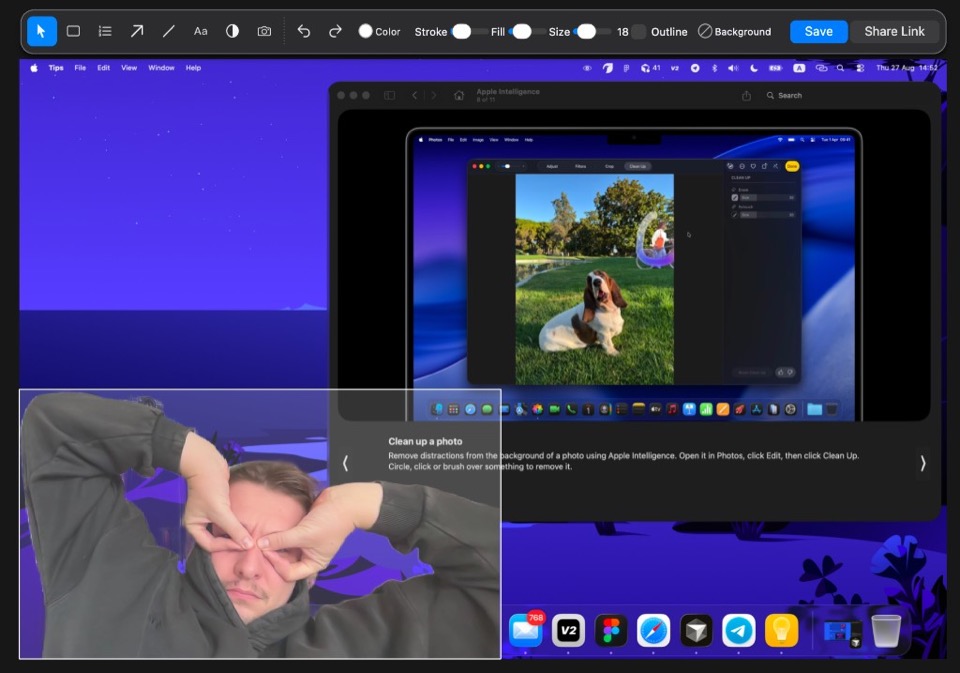
Add a webcam selfie on the screenshot in one click.
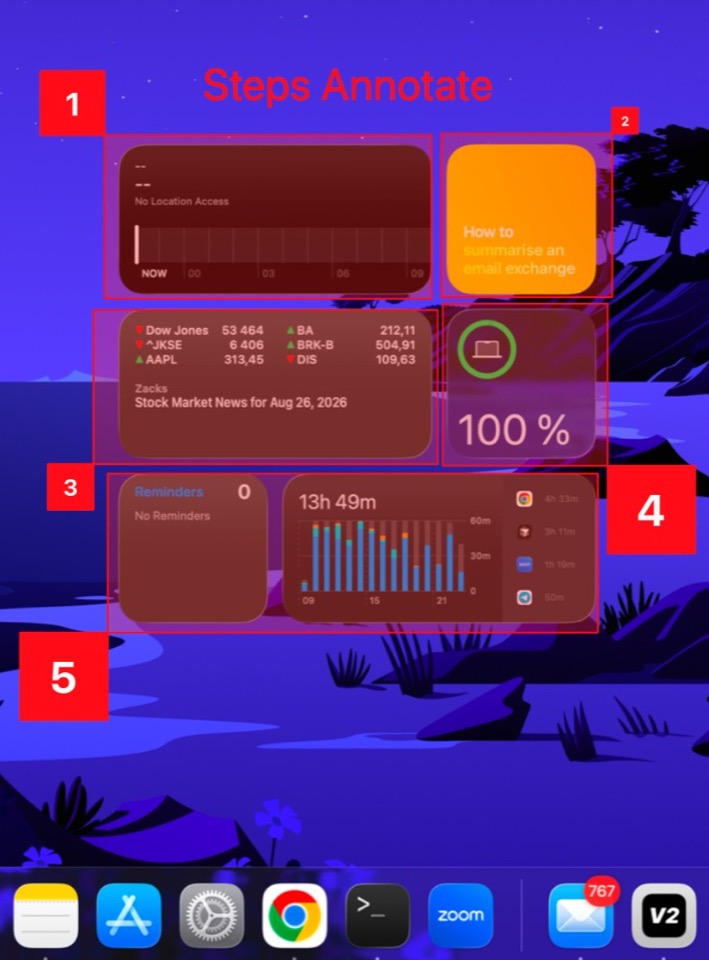
Show the agent in what order to solve the task.
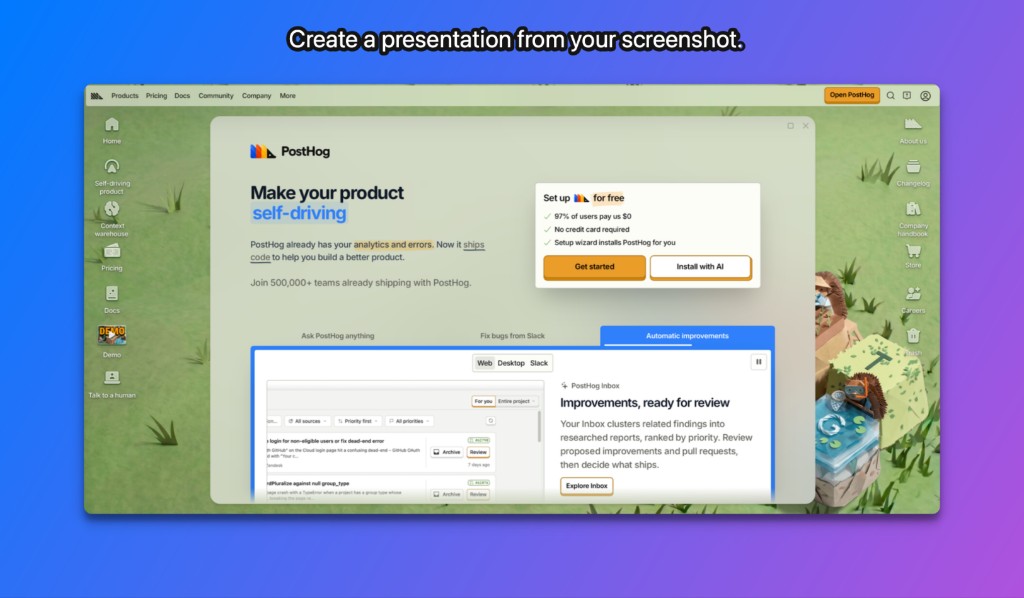
Create sexy presentation from your screenshots.
 ibrolord@ibrolord
The workflow is strong, but one-click sharing changes the trust question: screenshots can contain secrets or customer data. Before using it for AI feedback, I would need to know where the image is uploaded, whether the link is guessable, and when it is deleted. Make expiry part of the share flow—one hour, one day, or never—and keep a one-click redact tool beside annotation. That is part of the product promise, not footer privacy copy.
 Waqas Ahmad
finally someone did the much needed app. unfortunately i am no longer using mac !
 yaronyang@yaronyang
The native Mac screenshot dance is exactly the pain. One-click share is the whole product; if that first share takes more than one click the rest of the page does not matter.
The AI-agent feedback use case is interesting. If I were you I would put that in the first line of the page, not the second. Most screenshot apps look the same until you say who it is for.
 Julian Neagu
The biggest win is cutting the screenshot flow down to a few seconds. That kind of tiny workflow improvement adds up fast when you use it all day.
 UluP Studio - Manu
Congrats on the build! The use case for giving precise visual feedback to AI agents is super smart and highly relevant right now. They definitely perform better with annotated images. Are you planning to add any features specifically tailored for AI workflows, like auto-extracting text from the selection?
 Flo
FloSolving your own friction is the best reason to build!
While established tools like CleanShot X already have a strong foothold in basic screenshot sharing, your AI agent integration is the real standout feature. If you pivot the positioning to focus specifically on "instant visual context for AI prompts," you'll hit a unique, timely angle that really sets you apart.
 mariyaha@mariyaha
The main advantage is the built-in editor—did I understand that correctly?
 hrmackenzie@hrmackenzie
Taking screenshots and annotating in one step would be a big help to anyone who use AI for their products UI/UX. A friend of mine is building his first project and Claude has been eating up tokens as he gets it to fix his UI. I told him its because he's giving it his code and a link so those are burning thru his tokens and its way better to just give it a screenshot - I'm surprised a lot people don't know this. SeenShot would be perfect for him - unfortunately he's a Windows user.
| Feature | SeenShot | Zight | Droplr | Gyazo | Loom | CleanShot | Shottr | BlurData | Redacted |
|---|---|---|---|---|---|---|---|---|---|
| Description | Fast, Free, Secure Screenshots in Agentic Era | Capture-and-share | Capture-and-share | Capture-and-share | Capture-and-share | Screenshot utility | Screenshot utility | Desktop redaction | Desktop redaction |
| Price | Free, $29/year, Lifetime $87 | Free, Create $9.95/user/mo billed annually | Pro Plus $6/mo billed annually ($72/year) | Free, Pro $5.99/mo billed yearly ($71.88/year) | Starter $0, Business $18/user/mo | Basic $35 once, Pro $10/user/mo billed annually | Free (license on shottr.cc) | Personal $79/year or $149 once | — |
| Capture | |||||||||
| Full screen, window, and region capture | Yes | Yes | Yes | Yes | Yes | Yes | Yes | No | No |
| Scrolling / panoramic capture of long pages | No | Yes | — | — | — | — | — | No | No |
| Repeat last region and fixed-size capture | Yes | — | — | — | — | — | — | — | — |
| All-in-one capture mode behind one shortcut | Yes | — | — | — | — | — | — | — | — |
| Color picker, ruler and pixel-measure utilities | Yes | — | — | — | — | — | Yes | — | — |
| Webcam and camera capture alongside screen | Yes | — | — | — | — | — | — | — | — |
| Auto Blur | |||||||||
| Auto-blur sensitive data | Yes | — | Yes | — | — | No | — | Yes | — |
| Auto-blur faces | Yes | — | — | — | — | No | — | Yes | — |
| Auto-blur phone numbers | Yes | — | Yes | — | — | No | — | Yes | — |
| Auto-blur passwords | Yes | — | — | — | — | No | — | — | — |
| Auto-blur emails | Yes | — | Yes | — | — | No | — | Yes | — |
| Auto-blur API keys | Yes | — | — | — | — | No | — | — | — |
| AI Agents | |||||||||
| One-click export to agents | Yes | — | — | — | — | — | — | — | — |
| Supported agents | — | — | — | — | — | — | — | — | |
| Offline | |||||||||
| All features work without internet and without external APIs | Yes | No | No | No | No | Yes | — | Yes | — |
| Annotation | |||||||||
| Arrows, shapes, lines and freehand pen | Yes | Yes | Yes | Yes | Yes | Yes | Yes | No | — |
| Text, callouts and speech bubbles | Yes | Yes | — | — | — | — | — | No | — |
| Highlighter and numbered step tool | Yes | Yes | — | — | — | — | Yes | No | — |
| Styles, favorites and per-tool presets | Yes | — | — | — | — | — | — | — | — |
| Smart move / object-aware rearrange | Yes | — | — | — | — | — | — | — | — |
| Beautification & presentation | |||||||||
| Backgrounds, gradients, padding and alignment | Yes | — | — | Yes | Yes | — | — | — | — |
| OCR & content intelligence | |||||||||
| On-device OCR text extraction from captures | No | — | — | Yes | — | Yes | Yes | Yes | — |
| Searchable text across capture library | No | Yes | — | Yes | — | — | — | — | — |
| Scrolling-text capture and table extraction | No | — | — | — | — | — | — | — | — |
| AI detection of faces, plates, IDs, QR codes | Yes | — | — | — | — | — | Yes | Yes | — |
| Privacy & redaction | |||||||||
| Gaussian blur, mosaic/pixelation, solid bars | Yes | Yes | Yes | — | Yes | Yes | Yes | Yes | Yes |
| Emoji cover, watermark overlays, color choices | Yes | — | — | — | — | — | — | Yes | — |
| Auto-detect PII: emails, names, phones, addresses, accounts | Yes | — | Yes | — | — | No | — | Yes | — |
| Face and license-plate detection, group photos | Yes | — | — | — | — | — | — | Yes | — |
| Video redaction with object tracking | No | — | — | — | — | — | — | — | — |
| Automation & workflows | |||||||||
| Hotkeys for every capture and action | Yes | — | — | — | — | — | Yes | — | — |
| Watched folders and scheduled capture | No | — | — | — | — | — | — | — | — |
| CLI / scripting hooks | No | — | — | — | — | — | — | — | — |
| Sharing & collaboration | |||||||||
| Instant shareable link with hosted upload | Yes | Yes | Yes | Yes | Yes | Yes | — | No | — |
| Team & admin | |||||||||
| Centralized license and seat management | Yes | Yes | Yes | — | Yes | Yes | — | Yes | — |
| Role-based permissions and domain control | Yes | Yes | Yes | — | Yes | Yes | — | — | — |
| Performance & reliability | |||||||||
| Native performance on Apple Silicon / low memory | Yes | Yes | — | — | — | Yes | Yes | Yes | — |
| GPU-accelerated capture and encode | Yes | — | — | — | — | — | — | — | — |
| Auto-updates (notarized, Sparkle-style) | Yes | — | — | — | — | Yes | Yes | Yes | — |
| Crash recovery of unsaved captures | Yes | — | — | — | — | — | — | — | — |
| Platform | |||||||||
| MacOS Arm | Yes | Yes | Yes | Yes | Yes | Yes | Yes | Yes | Yes |
| MacOS x86 | Yes | Yes | Yes | Yes | Yes | Yes | Yes | Yes | Yes |
| Windows – in development | Yes | — | — | — | — | — | — | — | — |
| Menu-bar quick access and onboarding | Yes | — | — | — | — | — | Yes | — | — |
Apple Silicon (arm64)
$29 / year
Everything in Free. All tools stay free. Member adds 1 GB screenshot storage.
$87
Everything in Member. Pay once.
Yes. For personal use SeenShot is free. You can take as many screenshots as you want and add as many annotations as you want. There are no limits on captures or annotations. Free screenshots keep a watermark.
To remove the watermark, Member is $29 / year. Member also adds 1 GB screenshot storage so you can keep shots and come back to them.
SeenShot runs on Mac, Apple Silicon (arm64) and Intel (x86). Windows is in development.
Yes. Download the app and install it on your computer. You do not need the App Store. There are no extra limits.
Install the app, press cmd+shift+2, and save the region you want to capture.
Besides screenshots, you can highlight a zone, highlight numbered steps, add text and lines, change colors, change text size, and add a Background so you can turn shots into presentations.
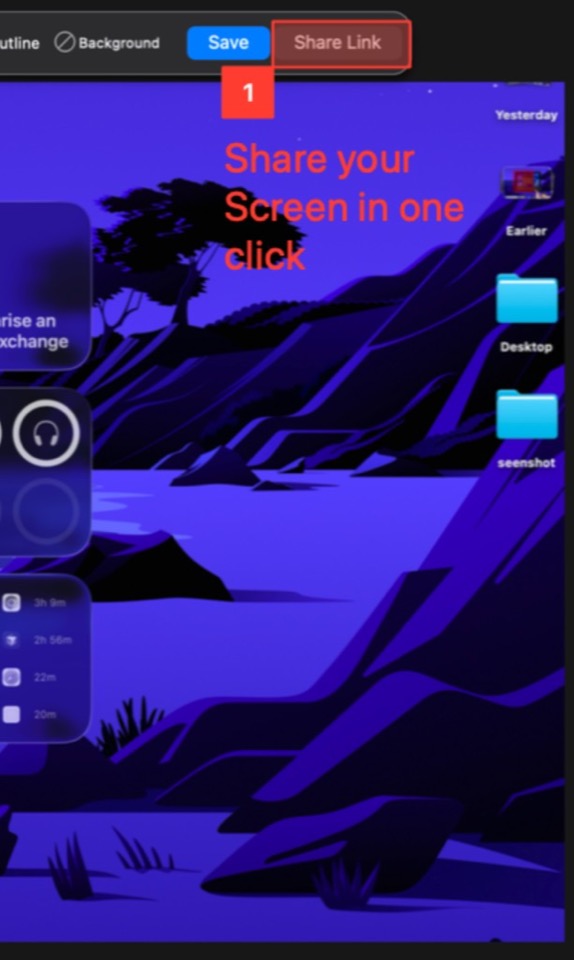
One click inserts a screenshot into 10+ AI agents. You can also publish any screenshot and share a link with friends. Sharing is fast and safe.
Performance is as high as it gets. The app is under 40 MB, installs quickly, and does not use extra resources on your computer.
Yes. Auto Blur can blur sensitive data on capture. It blurs faces, passwords, emails, and API keys so you can share shots with AI agents without leaking secrets.
After you install the app, turn on Auto Blur. That is all.
Yes. There is a corporate licence. Contact the creators to get one. There are no seat limits. Contact Me
No. Blur and recognition run on your computer. You can turn the internet off and it still works. SeenShot is a fully offline, standalone app for capture, blur, and annotation. Internet is only needed when you upload a screenshot to share a link.